Create new items
This option is used for logging Incidents, Problems and Change Requests. Although primarily accessed by end-users, if for some reason they cannot open the system, they can ask an Administrator or ServiceDesk Operator to record the details for them.
Ensure the various administrative tasks are in place before allowing users to access NetSupport ServiceDesk. Create your company and department structure; ensure technical departments and ServiceDesk Operators have been given the appropriate permissions. You also need to decide where problems should be assigned.
First-time users
When users attempt to log on to NetSupport ServiceDesk for the first time, they are prompted for their user details. This includes their company and department which should have been pre-defined by the system administrator. When the details are submitted, they are directed to the default end-user start page, where they can choose to create a new Incident, Problem or Change Request.
Existing users
Once registered, users who log on with their email address will be directed to their default start page as defined in their preferences.
Creating a new item
-
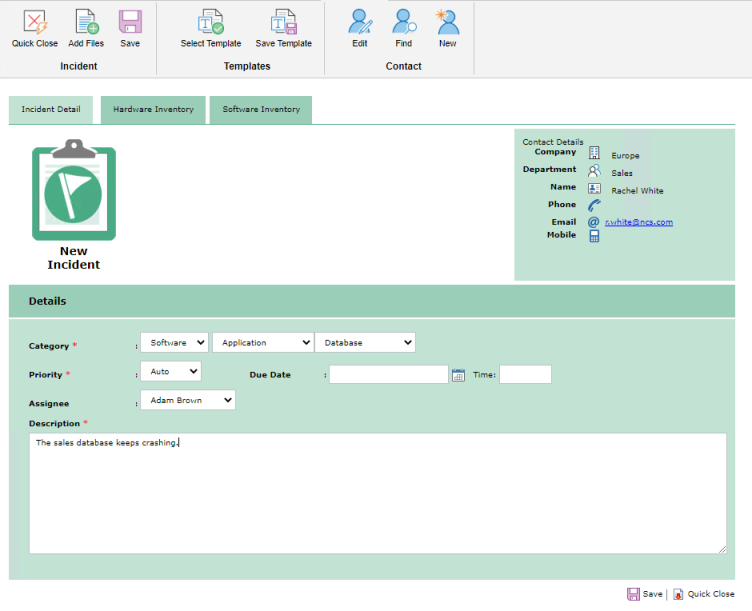
If the New Incident, Problem or Change Request page is not the user's default start page, select the Home tab and click the New Incident, Problem or Change Request icon in the toolbar, depending on what type of issue you want to raise.
Note: The Administrator can create a template for the most common problems. The user can then select from a list of templates which will populate the item with pre-defined information. -
The contact details of the person creating the problem are automatically registered if the logged-on user has 'end-user' permissions.
Or
If an Administrator or ServiceDesk Operator is logging the item, the contact details will be blank by default. This caters for occasions when the item is being entered on behalf of an end-user who can't access the system. To indicate the originator of the item, click the Find icon on the toolbar to search for the end-user or click New to add a new end-user account to the system.
Note: Problems do not require any contact details to be added, so these options will not be displayed when creating a new Problem. -
Select the category. The drop-down list should already contain suitable choices.
-
Choose the required priority.
-
Enter a resolution due date and, if required, specify a time.
Note: The working days and hours can be defined for NetSupport ServiceDesk. In the Admin tab, select the Working Time or Holidays icon to configure these settings. -
If an Administrator or ServiceDesk Operator is logging the item, select the Operator to assign the item to. This is not required if an end-user is logging the item, as the database will already hold the rules for where to assign the item.
-
Enter a description of the item.
-
Files can be added to the item, click Add Files.
-
When completed, click Save.
-
A confirmation screen will appear, providing a reference number and advising where the item has been assigned.
Creating items on behalf of another user
If for any reason, an end-user can't access the system they can ask an Administrator or ServiceDesk Operator to log the problem for them. The item can still be raised in the name of the end-user.
See also:
 Download manual

