Dealing with items
A number of tools are available to the assignee to help them diagnose problems and communicate with the end-user. During the lifespan of an item, assignees can add progress information, send automated email notifications, retrieve a complete Hardware/Software Inventory of the end-user machine, initiate online chat sessions and even remotely control the user's desktop.
Adding/changing information
-
Find the required Incident, Problem or Change Request.
-
Either choose from the Item list or Summary page that appears when the Operator logs on.
Or
Enter the reference number, if known, in the Home tab or use the Quick Find feature.
Or
Select the List tab; a user can view the Incidents, Problems and Change Requests assigned to them or use the Search feature. Administrators and ServiceDesk Operators can view by department and by all.
-
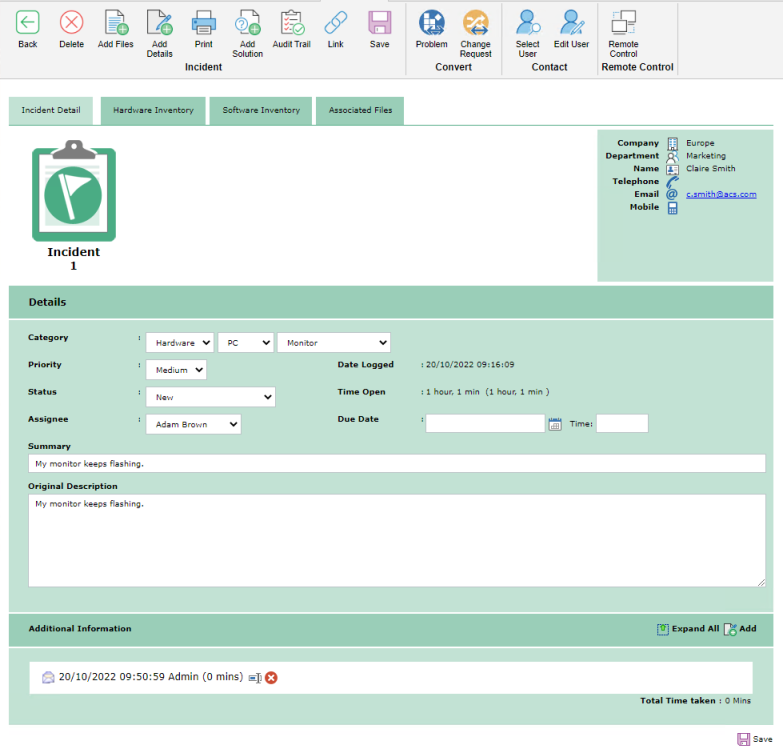
The Information window for the selected item appears. If the initiator has other outstanding items, the status of these is also displayed. If there is an SLA rule that applies to this item, a Service Level Agreement section is displayed. This shows a description, the due date and the time remaining on the item.
-
Existing information such as the priority, status, assignee and due date can be changed if required.
Note: You can create automated email notifications which are triggered if any of these details change. -
Use the Additional Information section of the window to add progress comments. Click Add each time you want to insert a new comment or send an email and the NetSupport ServiceDesk Text Editor tool appears.
-
Files relevant to the item can be added; select Add Files from the toolbar.
-
A history of any changes/updates made is stored. To view this, select Audit Trail from the toolbar.
-
While trying to diagnose the problem, it can be useful to remote control the end-user's PC or initiate an on-line chat session. If installed on the ServiceDesk Operator and end-user PCs, NetSupport ServiceDesk can hook into a third-party remote control application.
-
Related Incidents, Problems and Change Requests can be linked together; select Link from the toolbar.
Note: An icon appears on the image at the top of the window, indicating the item is linked to another. Clicking this takes you to the master item, which displays a Linked Items tab. -
When all required items have been updated, click Save.
Converting Items
Incidents, Problems and Change Requests can be converted to a different type of item if required.
-
With the item to be converted open, click Convert to xxx at the top of the Information window.
-
The item will change to the selected item type. Items can be converted as many times as you wish.
See also:
 Download manual

